Introduction
Roku devices are a popular choice for streaming entertainment, but pairing the Roku remote to your Roku Stick is essential for an uninterrupted viewing experience. A correctly paired remote ensures seamless navigation through your content, helping you avoid the frustration of a non-responsive device. This guide provides a straightforward approach, ensuring you’re set up properly to enjoy your Roku Stick to the fullest.
Understanding Your Roku Devices
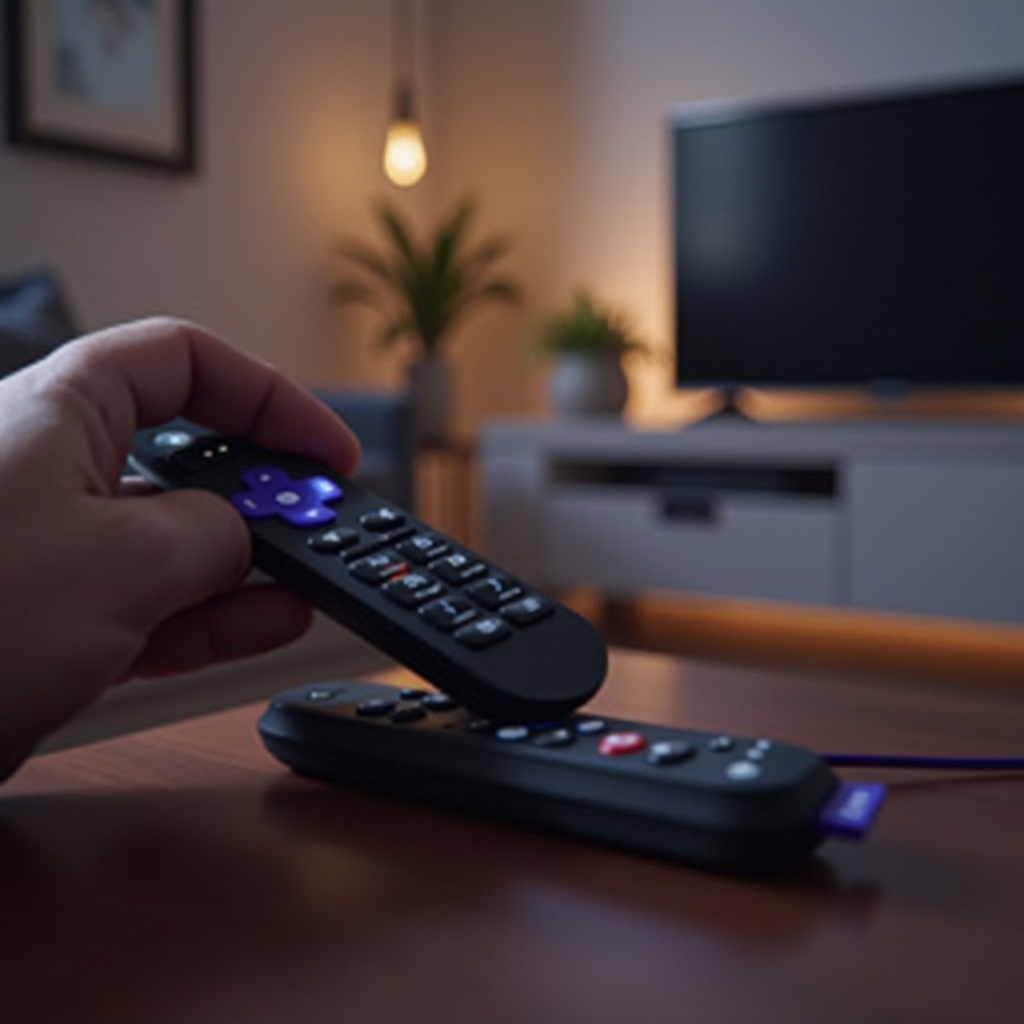
Before diving into the pairing process, familiarize yourself with your Roku setup. Different Roku Stick models and remote types may require slight variations in the pairing process, so knowing your specific equipment will be helpful.
Overview of Roku Stick Models
Roku offers a range of streaming sticks, such as the Roku Streaming Stick 4K and Roku Streaming Stick+. These devices are designed for easy plug-and-play use with your TV’s HDMI port, but it’s essential to know that the core pairing methods are similar, regardless of the model.
Types of Roku Remotes
Roku offers two primary types of remotes: IR (Infrared) remotes and enhanced remotes. IR remotes need a direct line of sight to your Roku Stick, making placement crucial. Enhanced remotes, on the other hand, connect via wireless technology, offering more flexibility without the requirement for a clear line of sight.
Step-by-Step Guide to Pairing Your Roku Remote
Now that you’re familiar with your Roku setup, let’s pair your remote with confidence. Follow these clear steps to connect your remote to your Roku Stick successfully:
Preparing Your Roku Stick and Remote
- First, insert fresh batteries into your remote.
- Ensure your Roku Stick is properly powered and connected to the HDMI port of your TV.
- Make sure your TV is set to the correct input to display the Roku home screen.
Pairing an IR (Infrared) Roku Remote
- Point the remote directly at your Roku Stick.
- Press any button on the remote. If the remote is not responding, check for obstructions that might interrupt the signal.
Pairing an Enhanced Roku Remote
- Open the battery compartment of the remote.
- Press and hold the pairing button until the LED light on the remote starts blinking.
- Wait for the remote to pair automatically with your Roku Stick. This process may take a few moments.
Successful pairing should have your remote responsive and ready to use. However, pairing issues can sometimes arise, and we’re here to guide you through resolving them.
Troubleshooting Pairing Issues
If you’ve followed the steps and your remote still isn’t working, you might encounter common issues. Not to worry—many problems have straightforward solutions.
Common Issues with Roku Remote Pairing
- Weak Batteries: Replace the batteries to see if power is the issue.
- Proximity Issues: Ensure your remote is close to the Roku Stick during the initial pairing process.
Quick Fixes for Non-Responsive Remotes
- Reset the remote by removing and reinserting the batteries.
- Unplug the Roku Stick from the power source, wait a few moments, and plug it back in to reboot.
How to Perform a Remote Reset
If basic troubleshooting fails, a deeper reset might be necessary.
1. Open the battery compartment.
2. Press and hold the reset button inside for several seconds.
3. Attempt the pairing process again.
For those who prefer not to use the physical remote, or if your remote continues to have issues, there are alternative methods to control your Roku device.
Alternative Remote Control Methods
Alternative methods can come in handy when your remote isn’t available, offering additional features that might enhance your streaming experience.
Using the Roku Mobile App as a Remote
- Download the Roku mobile app from the App Store or Google Play.
- Ensure your mobile device is on the same Wi-Fi network as your Roku Stick.
- Use the app’s intuitive interface to control your Roku Stick just like with a physical remote.
Voice Control Options and Compatibility
Integrate voice controls for an even more streamlined experience. Many newer Roku models are compatible with voice commands, either through Roku-branded remotes or third-party devices like Amazon Alexa and Google Assistant.
Keeping your remote in top condition can prevent many common issues, which we explore in the next section.
Tips for Maintaining Your Roku Remote
Regular maintenance is key for keeping your Roku remote functional. Following these simple tips will help avoid unnecessary pairing issues:
Battery Care and Replacement
Replace your remote’s batteries periodically to ensure optimal performance and avoid sudden disconnections.
Firmware Updates and Software Checks
Regularly check for device updates. Keeping your Roku Stick’s firmware up to date can resolve bugs and improve device connectivity.
Conclusion
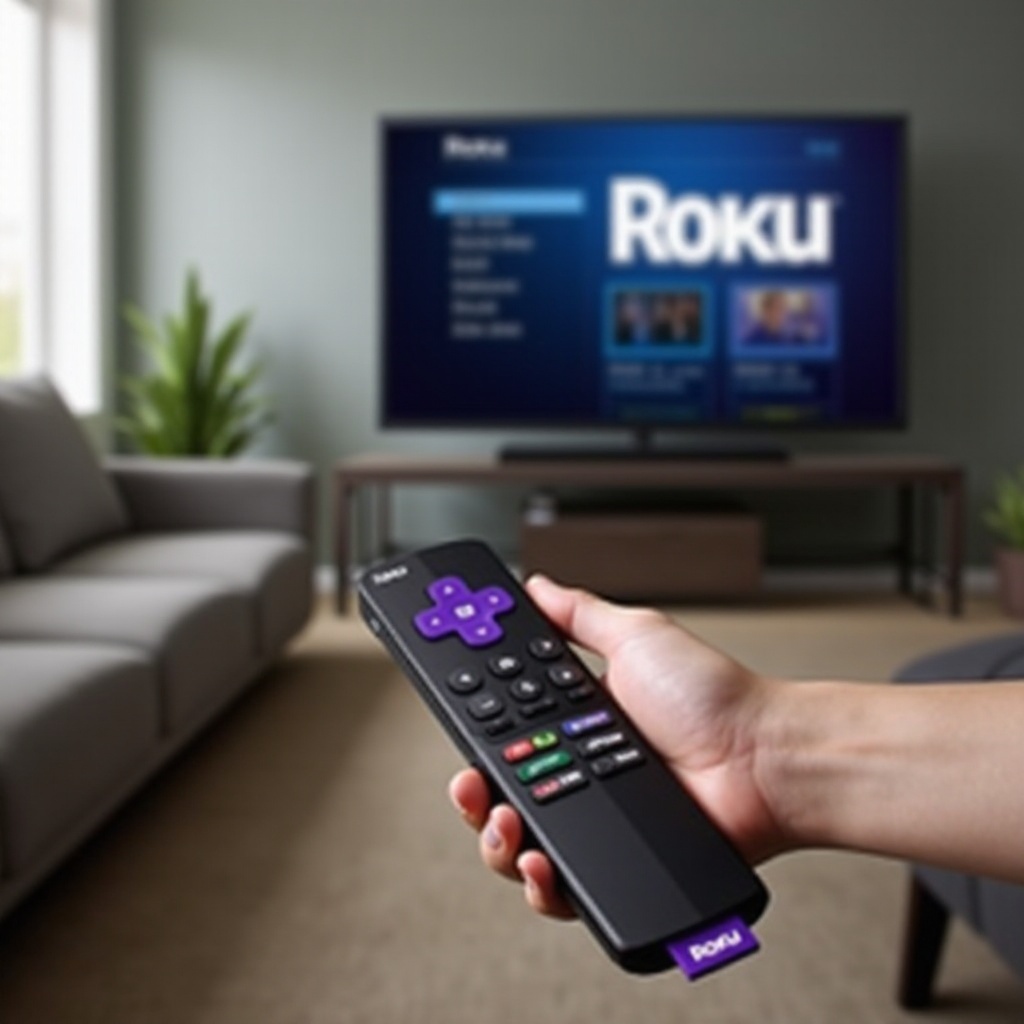
Properly pairing and maintaining your Roku remote ensures a seamless streaming experience. By following the step-by-step guide and keeping your remote in good condition, you can enjoy countless hours of entertainment without interruption. Explore alternative control options to enhance flexibility and convenience.
Frequently Asked Questions
Can any Roku remote work with my Roku Stick?
Not all remotes are compatible. Ensure that the remote model matches your Roku Stick for compatibility.
Why is my Roku remote not pairing even after a reset?
Check the batteries and ensure there are no obstacles blocking the remote’s signal. Consider using the mobile app or resetting the stick.
How can I control my Roku Stick without a remote?
You can use the Roku mobile app or voice control options like Alexa and Google Assistant to operate your Roku Stick.