Introduction
Roku streaming devices have transformed how viewers access content, providing a world of channels and straightforward streaming capabilities. At the core of this convenience is the Roku remote, which lets users navigate settings and channels effortlessly. A vital yet often unnoticed part of this remote is the pairing button. Understanding its purpose and proper usage can prevent connectivity headaches and enhance your viewing experience. This article will guide you through everything related to the pairing button, offering practical solutions and tips for an uninterrupted Roku experience.

What is the Roku Remote Pairing Button?
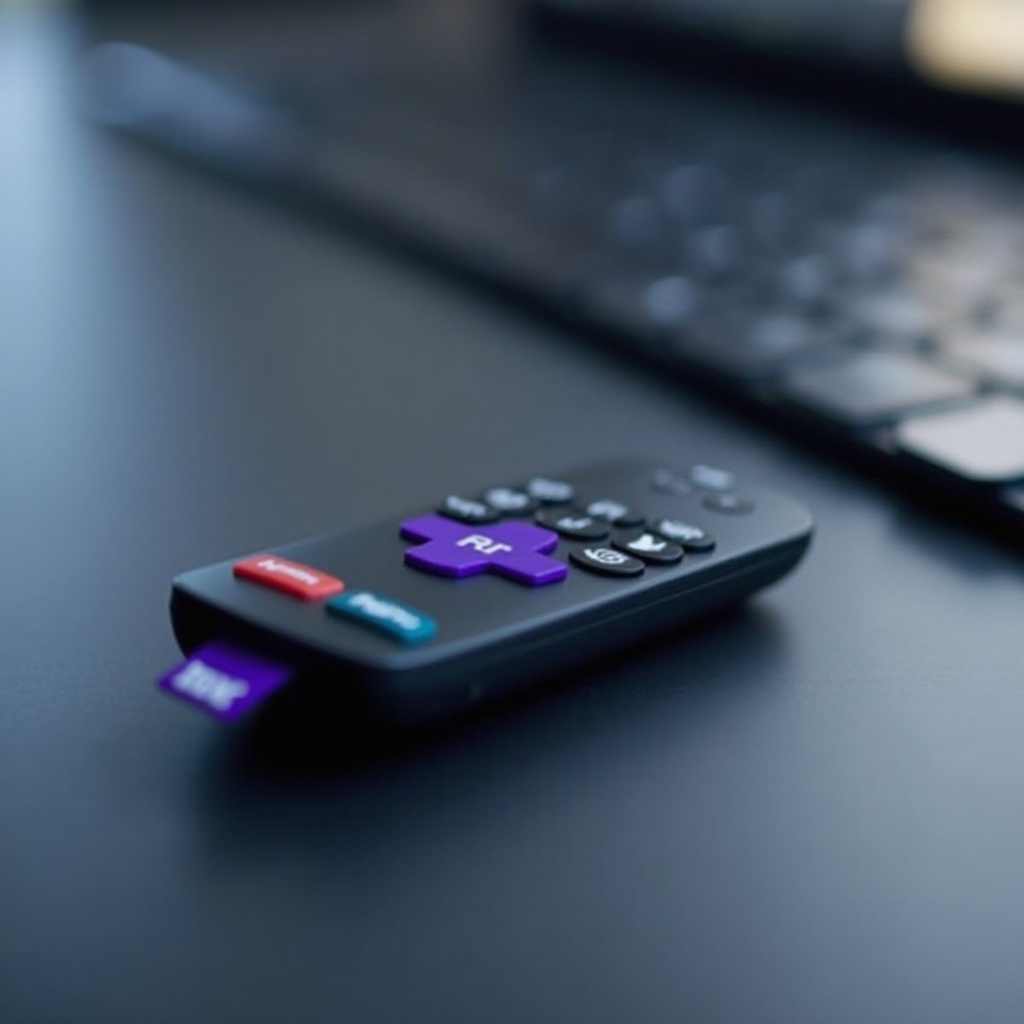
The pairing button on a Roku remote is an integral component required for establishing a robust connection between the remote and your Roku device. Typically positioned within the battery compartment, this button helps bind the remote to the player, enabling flawless command execution. While some Roku remotes automatically connect upon battery installation, others necessitate manual activation through the button. The button emits a Bluetooth signal to initiate pairing, ensuring that the remote and the Roku player communicate seamlessly.
Identifying the pairing button’s location depends on your specific remote model. Generally, it’s found beneath the battery cover on Roku voice remotes. In contrast, basic infrared remotes might not feature a pairing button, as they rely on line-of-sight technology. Knowing your remote’s specifics is essential for leveraging the pairing button’s full potential.
When to Use the Roku Pairing Button
Recognizing various scenarios for using the pairing button can safeguard against inconvenient disruptions. These situations underscore the importance of this button:
- Initial Setup: Upon acquiring a Roku device, using the pairing button might be necessary if an automatic connection is not established.
- Device Reset: A factory reset usually mandates re-pairing the remote.
- Battery Replacement: The remote might disconnect upon battery changes, requiring re-pairing.
- Remote Update: Software updates might necessitate button activation for reconnecting.
- Interference Issues: Environmental factors interfering with signals can prompt re-pairing.
Understanding and applying this knowledge ensures that your remote operates smoothly, avoiding unexpected interruptions.
How to Pair Your Roku Remote
Pairing your Roku remote is generally a simple task, varying slightly by remote model. Here are the steps to accomplish it effectively:
- Prepare your Remote and Device: Verify that your Roku device is powered on and connected. Insert fresh batteries into your remote.
- Locate the Pairing Button: Inside the battery compartment, you’ll find the pairing button, typically a small, circular component.
- Activate Pairing Mode: Press and hold the pairing button for five seconds. A flashing light indicates that pairing mode is active.
- Wait for Confirmation: Allow up to 30 seconds for the device to connect with the remote. Successful pairing usually prompts an on-screen message.
- Test the Connection: Navigate the Roku home screen to confirm the remote’s functionality.
Reattempt these steps if they initially don’t succeed, ensuring no obstructions exist between the remote and the Roku device.
Initial Pairing Process
The most common method during new device setup or post-reset. A bit of patience ensures success.
Re-pairing After Battery Changes
Re-pair your remote by following the same pairing process whenever you replace the batteries.
Troubleshooting Common Issues
Should obstacles persist, such as interference or unresponsive pairing, additional troubleshooting might be necessary.
Troubleshooting Roku Remote Pairing Problems
Despite taking care, pairing issues can still arise. Consider the following troubleshooting tips:
- No Response from Remote: Check battery charge and ensure they are correctly installed. The remote’s indicator light should illuminate with button presses.
- Intermittent Connectivity Issues: Relocate your Roku device from tight spaces or electronic interference sources.
- Seeking Advanced Support: Consult the Roku support site or customer service if issues persist.
These solutions often resolve pairing difficulties, guaranteeing a consistent connection between your device and remote.
Tips for Optimizing Your Roku Experience
Enhance your viewing experience with these additional Roku tips:
- Keep Your Device Updated: Regular software updates fix bugs and improve features.
- Explore Voice Controls: Use the voice function on compatible remotes for easier navigation.
- Customize Your Channel List: Streamline channel navigation by organizing your list.
- Utilize the Mobile App: Download the Roku app for expanded features like private listening.
Implementing these suggestions can elevate your Roku enjoyment by ensuring features are utilized to the fullest.
Conclusion
Understanding and efficiently using the pairing button on your Roku remote is crucial for maintaining an uninterrupted entertainment experience. Whether resolving a pairing issue or simply optimizing your viewing, having a reliable command of your remote can significantly enhance your enjoyment of Roku’s vast offerings. Keep these insights handy, and enjoy a hassle-free watching experience as you explore everything Roku has to offer.
Frequently Asked Questions
What should I do if my Roku remote won’t pair?
Try restarting both your Roku device and remote, ensuring fresh batteries. If the problem persists, consider using the Roku mobile app.
Can I replace my Roku remote if the pairing button is defective?
Yes, consider purchasing a compatible Roku remote or using a universal remote with Roku support.
Are there alternatives to using the pairing button for connecting my Roku remote?
The Roku mobile app can serve as an alternative control method if the remote pairing button is unresponsive.