Introduction
Wireless printing in homes and offices ensures a seamless connection between devices and printers, making tasks more efficient. A WPS PIN is crucial for facilitating these wireless connections, offering a simple, secure method for linking your printer to a network without USB cables or complex setups. This guide explores the WPS PIN’s details, how to find it, and how to use it effectively for printer setup.

Understanding WPS
What is WPS?
WPS, or Wi-Fi Protected Setup, simplifies the process of connecting devices to wireless networks. Traditional Wi-Fi connectivity involves entering a network name (SSID) and a password. However, WPS streamlines connections using a button press or PIN entry, creating an easy setup experience.
(WPS ensures a smoother transition to exploring the role of the WPS PIN.)
How Does WPS Work?
With WPS, you press a button on your router or enter a PIN on your device. This starts a secure negotiation process between the printer and router, establishing a connection without manual network credential entry. This method reduces the risk of errors when entering long SSIDs or passwords.
(Having established how WPS operates, let’s explore the specific chain of the WPS PIN.)
The Role of a WPS PIN
Definition of WPS PIN
A WPS PIN is a unique eight-digit code that allows for a secure wireless connection setup on your router or printer. Using a PIN, rather than a button, ensures the device you want to connect holds the correct code, adding an extra layer of security.
Difference Between WPS and WPS PIN
While both WPS and WPS PIN connect devices to a wireless network, they do so differently. WPS refers to the button-press method, while WPS PIN uses a code. The PIN method is favorable when a device lacks a button or a physical option is limited. Understanding these distinctions helps you choose the best setup for your environment.
(Equipped with this knowledge, it’s time to locate your printer’s WPS PIN.)
How to Locate the WPS PIN on Your Printer?
Finding the WPS PIN is crucial in initiating the connection process. Typically, you can access this PIN through the printer’s control panel or check the label on the device itself.
Finding the WPS PIN on HP Printers
- Navigate to your HP printer’s control panel.
- Select ‘Wireless’.
- Go to ‘Settings’ and choose ‘Wi-Fi Protected Setup’.
- Opt for the ‘PIN’ option to display the WPS PIN.
Locating the WPS PIN on Canon Printers
- Access the Canon printer menu via the LCD screen.
- Navigate to ‘Setup’ or ‘Settings’.
- Choose ‘Device Settings’, then ‘LAN Settings’.
- The WPS PIN is listed under ‘WPS PIN Code’.
Accessing the WPS PIN on Epson Printers
- Check for a label on the side or rear of the printer.
- Press ‘Home’, followed by ‘Wi-Fi Setup’.
- Select ‘Push Button Setup (WPS)’ then ‘PIN Code Setup’ for PIN details.
(Now that you’ve located the WPS PIN, it’s time to set up your connection efficiently.)
Setting Up Your Printer with a WPS PIN
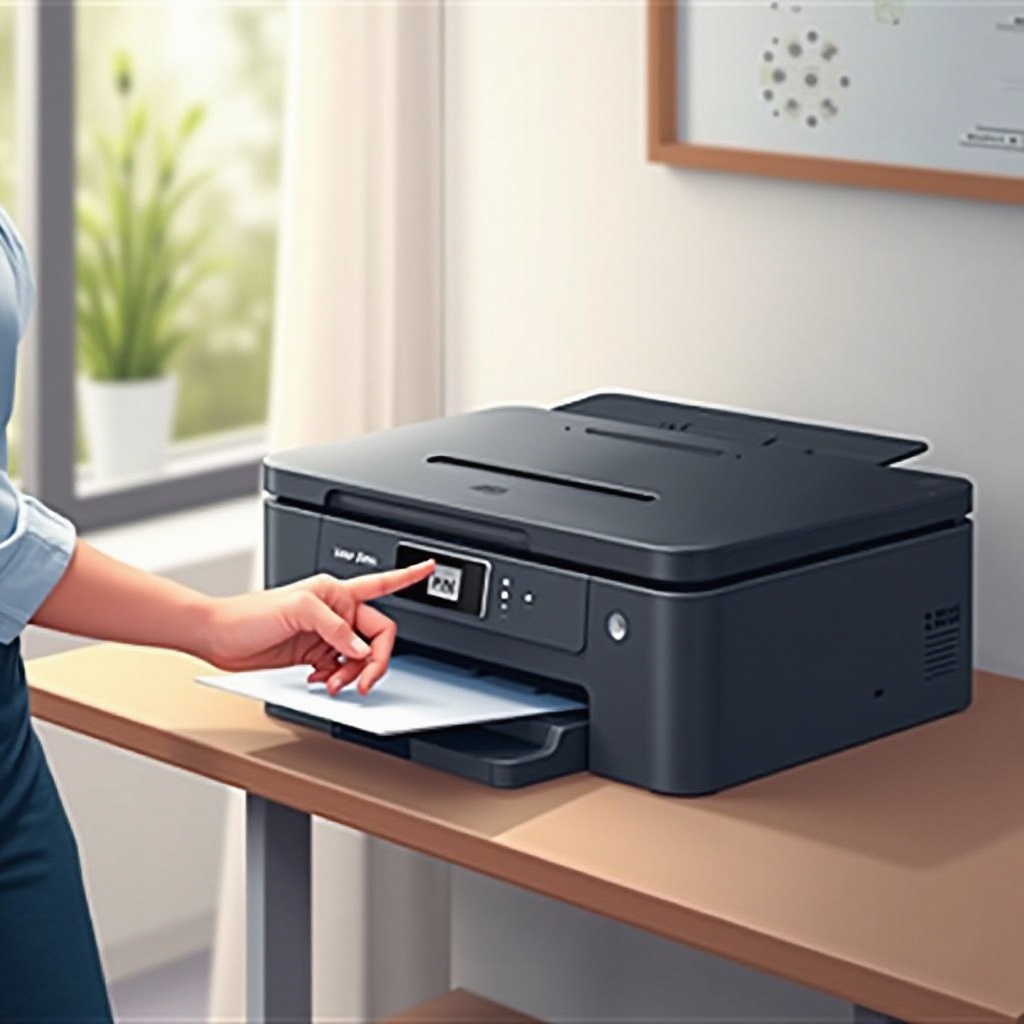
Getting your printer network-ready involves these straightforward steps once you’ve found the PIN.
Step-by-Step Setup Process
- Access your router’s WPS setup page via a web interface.
- Enter the printer’s WPS PIN when prompted.
- Allow the setup to complete for network connection.
Troubleshooting Common Issues
Should issues arise, such as failing connections:
- Ensure the WPS PIN was entered correctly.
- Verify printer proximity to the router’s signal.
- Check for firmware updates that resolve connectivity issues.
Successfully connecting your printer ensures a more productive and convenient workflow.
Benefits of Using WPS for Printers
Ease of Connectivity
WPS eradicates cable clutter and intricate network settings. This method allows for effortless device integration into your network, providing instant printing access.
Enhanced Security Features
WPS bolsters security by obscuring network credentials during the connection process. Leveraging the WPS PIN maintains network integrity while easily adding devices.
(Wireless connections enhance your printing experience by providing ease and security.)
Conclusion
Understanding what a WPS PIN is, how to locate it, and setting it up optimizes your wireless printing environment. Following these steps, you can maintain a secure, efficient network connection for your printer.
Frequently Asked Questions
What happens if I can’t find the WPS PIN on my printer?
Consult the printer’s manual or manufacturer’s website for model-specific instruction if the WPS PIN is elusive.
Can I connect my printer without using a WPS PIN?
Yes, alternative methods include using USB cables or manually entering network credentials via the printer’s interface.
How secure is using a WPS PIN for printer connections?
Utilizing a WPS PIN is secure, as it enables device connection without revealing network passwords, minimizing potential security issues.