Introduction
You want a clear answer to a specific question: do you get notified when someone stops sharing location iPhone. You also want to know what your friend will see when you stop. Apple designed location sharing to help people meet up, stay safe, and coordinate plans without broadcasting private choices. That balance creates a few confusing moments. People see statuses like ‘No Location Found’ or a blank map and jump to conclusions. Others fear that stopping sharing will ping everyone with a loud alert. The truth sits in the middle and depends on the feature you use.
This guide lays out exactly when notifications appear, what the other person sees, and how to control sharing without drama. You will learn how Find My and Messages differ, how to read common statuses, and how to audit your sharing list. We also cover privacy tools like Safety Check, which can reset access quietly. After that, we compare Apple tools with popular third party apps so you do not mistake one set of rules for another. We close with step by step actions to stop sharing safely and a recap to keep your settings under control.
The Short Answer: When Do Notifications Happen?
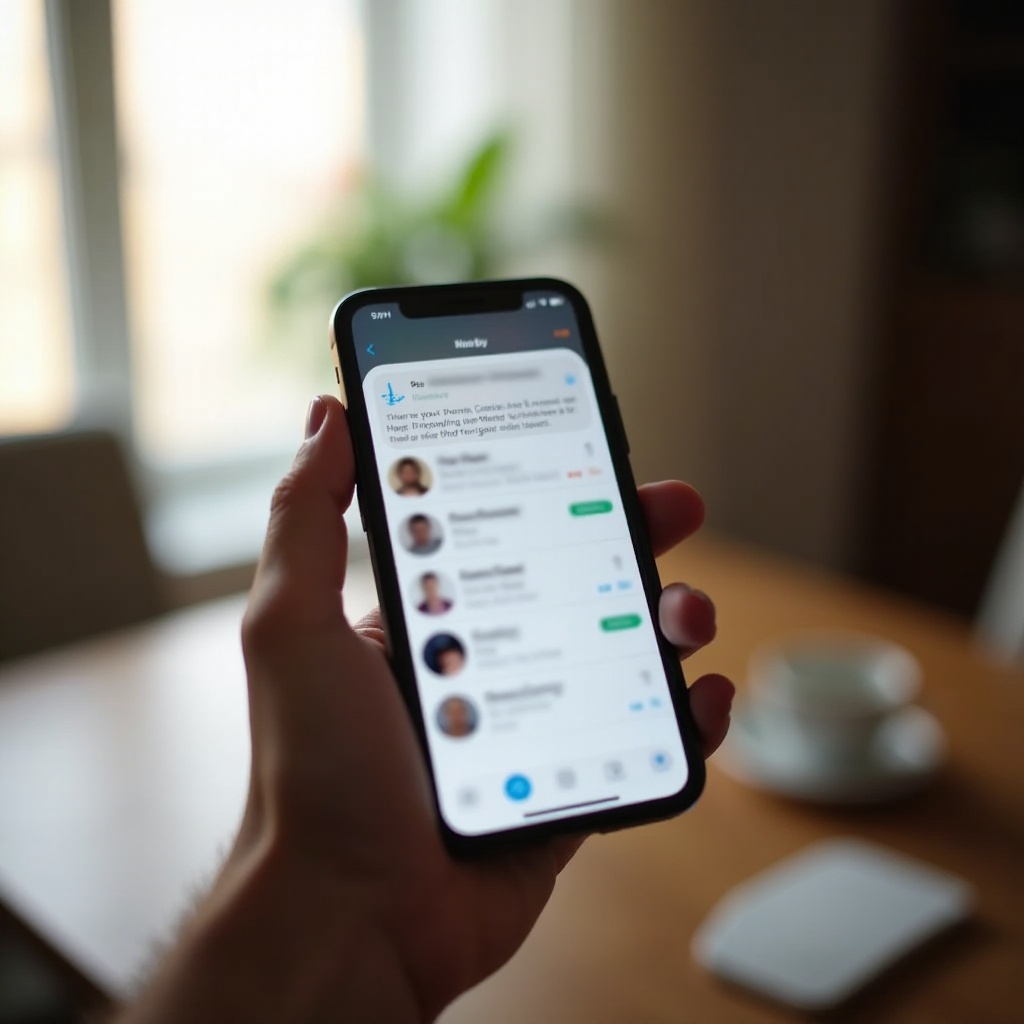
Apple does not send a standard push alert when you stop sharing your location in Find My or from a Messages conversation. If you stop sharing with one person or toggle off Share My Location, the other person will not receive a banner, sound, or lock screen notice. They will only notice the change when they look. In Find My, your name may vanish from their People tab or show a state that signals sharing ended. In Messages, they can see a line in the conversation or in the contact info that says location sharing is no longer active. These are passive indicators, not pushed alerts.
One important nuance: geofenced alerts called ‘Notify Me’ only work while sharing is active. If someone set a notification to trigger when you arrive or leave a place, that alert will not fire after you stop sharing. That is not a push that says you stopped; it is simply a lack of future alerts. Another nuance is third party apps. Google Maps, WhatsApp, and Life360 can send their own notifications or in thread updates when you end sharing within those apps. Apple cannot control those behaviors. Keep this difference in mind as you read the next sections.
How iPhone Location Sharing Works in Find My and Messages
To understand why notifications behave this way, it helps to see how Apple splits sharing into two main paths: Find My and Messages. Both use the same Apple location framework under the hood, but they show options in different places and support different use cases.
Find My vs. Messages at a Glance
Find My is the home for ongoing sharing among friends and family. Once you start sharing there, your device updates your location in the background while you carry your phone. People you choose can view your live position in the People tab, and they can attach geofenced alerts to your location, such as notify me when they arrive at work. Messages, on the other hand, brings sharing controls into a chat thread. You can start or stop sharing right from the conversation, and both people can see the sharing state without leaving the app. Underneath, both routes still write to the same system level ‘Share My Location’ setting.
Share My Location vs. Start Sharing Location
Share My Location in Settings acts like a master switch. When you turn it on, you can share through Find My or Messages. When you turn it off, all Apple location sharing stops until you turn it back on. By contrast, Start Sharing Location in Find My or Messages is a per person action. You choose whether to share for one hour, until the end of day, or indefinitely. The duration appears in the contact card, and you can end it from either the app you used to start sharing or from Find My.
One Time vs. Continuous Sharing
There is a big difference between sending a one time pin and sharing continuously. A single pin shares a snapshot in time and usually does not trigger any notifications beyond the act of sending the message. Continuous sharing keeps updating your position in the background and can power geofenced alerts set by the other person. Notification behavior follows that logic. Ending a one time share is a non event, because there is nothing active to stop. Ending an ongoing share simply removes your live updates and disables any geofences that depended on them.
What You See When Someone Stops Sharing
You know what Apple does not push. Now, let us look at what you do see when someone stops sharing with you. These signals are subtle by design and appear only when you open the app or thread.
Messages Thread Indicators
If someone starts sharing from a Messages thread, the thread itself knows the sharing status. When they end it, the chat may show a system line that says location sharing ended. The exact wording can vary, and you might only see it when you open the conversation or tap the contact name at the top. Either way, there is no alert sound. It functions as a quiet state change.
Find My App Statuses
Find My provides the clearest view. If the person stops sharing, their card may disappear from your People list or show a label that indicates sharing is no longer active. You might also see statuses like ‘No Location Found’ or ‘Location Not Available’ in scenarios where the device cannot update location, such as offline situations or when Location Services are disabled. Those messages do not always mean they stopped sharing. They often reflect technical constraints like network loss.
Family Sharing Differences
Family Sharing can change what you see, especially for a parent view of a child account. Parents often have persistent access to a childs device location, while kids have restricted controls. Even in family contexts, Apple avoids sending a push when someone toggles off sharing in a permitted context. Instead, the parent or guardian sees the state in Find My. If parental controls prevent turning off sharing, the child may not be able to disable it at all without the family organizer changing settings.
What They See When You Stop Sharing
We have covered your perspective. Next, flip the view. What will your contact notice when you end sharing from your side, and when will they notice?
Visibility Changes Only, Not Push Alerts
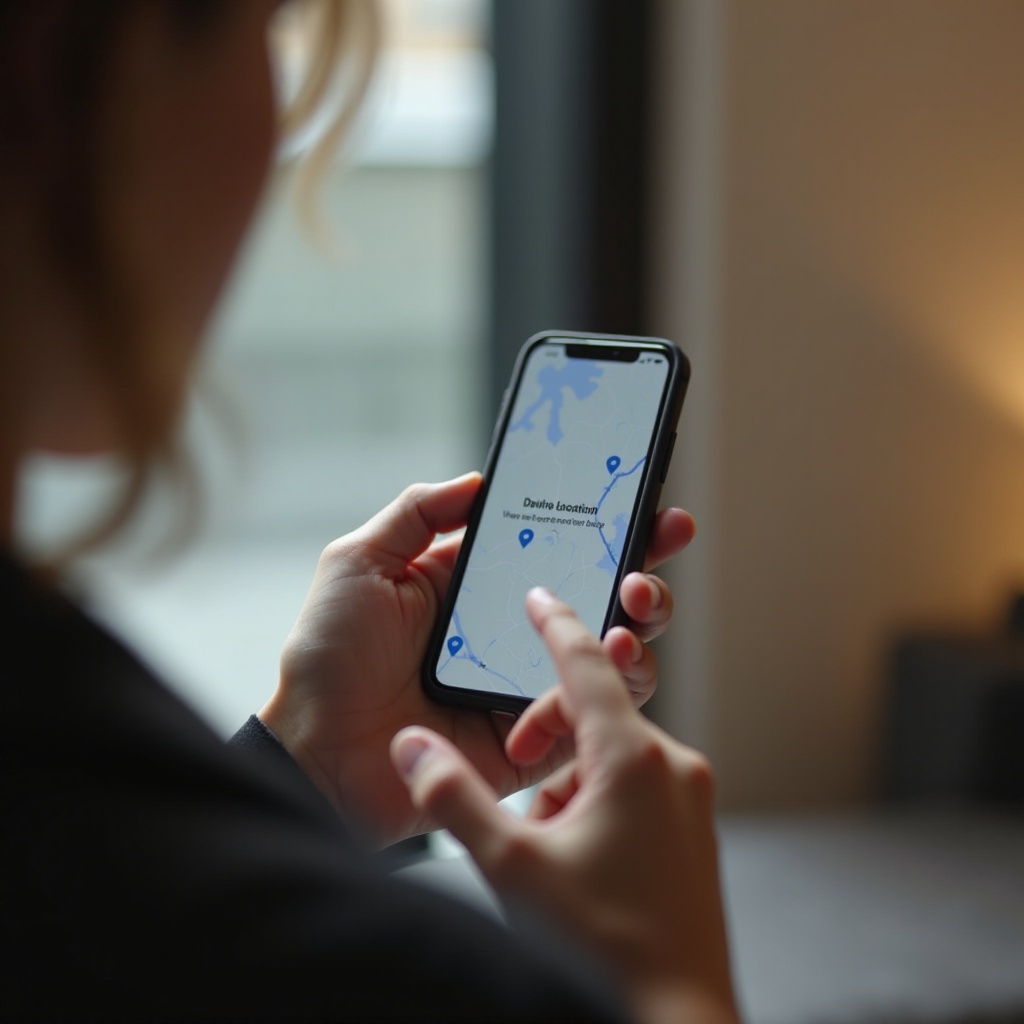
When you stop sharing with one person in Find My or from a Messages thread, they do not get a push alert. They will only notice if they open Find My or the conversation and check the state. Your name may vanish from People in Find My, your map pin stops updating, or a small banner in the chat mentions that sharing ended. Apple chooses this quiet approach to respect your privacy and avoid unnecessary drama.
Exceptions and Edge Cases
There are a few edge cases worth noting. Geofenced alerts stop functioning the moment you end sharing, so the other person will not receive arrive or leave notifications tied to your location. If their app caching lags, they may see a stale location for a short time until Find My refreshes. If you use Safety Check to reset sharing and permissions broadly, the system revokes access silently across people and apps. None of these behaviors convert into a push alert about the stop itself.
iOS 17 and iOS 18 Behaviors You Should Know
Newer iOS releases bring more privacy power without changing the core rule. Ending sharing still does not generate a push alert to others. However, several settings can influence what people see and how fast state changes appear.
Safety Check Impacts
Safety Check lets you quickly review and reset access that others have to your information, including location. Emergency Reset revokes sharing for all people and apps in one pass. This action does not notify the people you remove. It is built for urgent situations where quiet changes protect you. Manage Sharing and Access offers a slower review flow with the same silent effect.
Focus and Low Power Mode
Focus modes and Low Power Mode do not create or block stop alerts. They can slow down background activity, reduce network chatter, or delay notifications of other types. That means Find My may appear to update less often while your phone conserves battery or while a Focus suppresses other app notifications. Still, there is no conversion of a stop action into a push alert.
Location Precision Toggle
You can control precision per app by toggling Precise Location on or off. This toggle affects how detailed your shared location is when it is on. Turning precision off makes your position appear less exact on the map. It does not change whether someone gets a notification when you stop. It only affects the detail level when sharing remains active.
Common Confusions: ‘No Location Found’ vs. ‘Stopped Sharing
Misreading statuses creates stress. Two phrases cause the most confusion: ‘No Location Found’ and ‘Location Not Available’. Neither phrase guarantees that someone ended sharing. In many cases, the device simply cannot report its location at the moment.
Network and Battery Scenarios
No Location Found’ often points to a device that is offline or unable to reach Apple servers. The phone could be in Airplane Mode, in an area with no signal, or in a building that blocks GPS. A dead battery creates the same outcome. ‘Location Not Available’ can appear when Location Services are off for the device, either by choice or due to restrictions. In all those scenarios, sharing still exists. The system just cannot obtain a fresh coordinate to show.
Signed Out or Erased Devices
More permanent changes can also confuse viewers. If someone signs out of iCloud, disables Find My, erases the device, or changes Apple IDs, your app may show a stale last known location or no information at all. That is different from actively ending sharing within Find My or Messages. If you see a long standing unavailable state, consider technical causes first before assuming an intentional stop.
How to Check Who Can See Your Location
If you feel unsure about who can see your location, check your lists. A quick review avoids surprises and gives you control over your privacy.
From Find My
- Open Find My and tap the People tab.
- Review the list of people who can see your location and those whose locations you can see.
- Tap any name to view options such as Stop Sharing My Location or Remove.
- If someone should not be there, remove them. If you expect someone else, add them and select a sharing duration.
- Use Notify Me sparingly and only with consent.
From Messages
- Open a conversation and tap the contact name or header at the top.
- Tap Share My Location to start or stop sharing from within the chat.
- Select one hour, until end of day, or indefinitely to match your need.
- Later, return to the same place and tap Stop Sharing if you want to end it quietly.
Per App Permissions
- Go to Settings, Privacy and Security, then Location Services.
- Review the list of apps with location access and remove any you do not trust.
- For each app, choose Never, Ask Next Time, While Using the App, or Always as appropriate.
- Toggle Precise Location off if you want to share a general area rather than an exact spot.
- Remember that this section controls app permissions and does not replace Find My sharing controls.
Privacy, Consent, and Etiquette Tips
Technology solves logistics, but people solve trust. Use these simple habits to keep sharing healthy and respectful.
Setting Expectations
Tell people why you are sharing and when you expect to stop. Clear expectations prevent confusion and reduce anxiety. For example, say you will share during a road trip and stop when you get home. Then follow through and stop as planned.
Temporary Sharing Options
Default to shorter durations when possible. Use one hour or until end of day instead of indefinite. Temporary sharing reduces the maintenance burden on you and avoids awkward questions when a long running share suddenly ends. It also gives your contacts a clear timeline.
Healthy Boundaries
Only share with people who respect your boundaries. If anyone pressures you to share, pause and reset. Apple built Safety Check to help you reclaim privacy in a quiet, controlled way. If a relationship requires constant tracking, reassess whether location sharing aligns with your values and safety.
Alternatives and Cross Platform Context
Many groups mix iPhone and Android or prefer different apps. Do not assume Apple rules apply everywhere. Each app has its own logic and alerts.
Google Maps, WhatsApp, Life360
Google Maps supports live location in a share link. It can show in app notices when you end sharing and may send reminders. WhatsApp places live location inside a chat thread and usually shows a line when sharing ends. Life360 focuses on family tracking and can push many alerts, such as arrivals or driving events. Read each app’s help center before you assume it mirrors Apple’s quiet approach.
Mixed iPhone Android Households
Cross platform groups often settle on WhatsApp or Google Maps to share. Pick one app, test how it notifies when sharing ends, and agree on etiquette. If privacy is a concern, prefer shorter durations and disable always on sharing. Communicate your plan so no one reads a quiet stop as a signal of trouble.
Troubleshooting Unexpected Notifications or Missing Alerts
If you see odd behavior, do a quick health check of your settings and apps. Most issues stem from caching, permissions, or device management.
Reinstalling Find My
Find My is a system app that updates with iOS. If it shows stale data, force quit it, reopen, and refresh the People tab. Sign out of iCloud and back in only if needed. Updating iOS can also clear oddities that persist across restarts.
Reset Location and Privacy
If permissions feel stuck, go to Settings, General, Transfer or Reset, then Reset Location and Privacy. This clears location permission prompts and returns them to defaults. After the reset, re enable Location Services and Share My Location as needed. Review who can see your location and confirm that your intent matches the current state.
MDM and Work Profiles
Company managed devices can enforce policies that restrict sharing or hide settings. If you see grayed out options in Find My or Location Services, your employer’s mobile device management may control them. Contact your IT team for help. They can clarify what is allowed and adjust profiles if needed.
Step by Step: Stop Sharing Quietly and Safely
Now that you understand the mechanics and etiquette, here are precise steps to end sharing without creating noise.
Stop Sharing with One Person
- Open Find My and tap People.
- Select the person you want to stop sharing with.
- Tap Stop Sharing My Location and confirm.
- The other person will not get a push alert. They will see the change only if they open Find My or the relevant Messages thread.
Turn Off Share My Location
- Open Settings, tap your Apple ID banner, then Find My.
- Toggle off Share My Location to pause all Apple location sharing.
- Use this as a broad pause if you need a break from sharing across the board.
- When ready, turn it back on and selectively re enable sharing with trusted contacts.
Use Safety Check
- Go to Settings, Privacy and Security, then Safety Check.
- Choose Emergency Reset to revoke sharing with all people and apps, or pick Manage Sharing and Access for a guided review.
- Follow the prompts to remove people, revoke app permissions, and update your Apple ID settings.
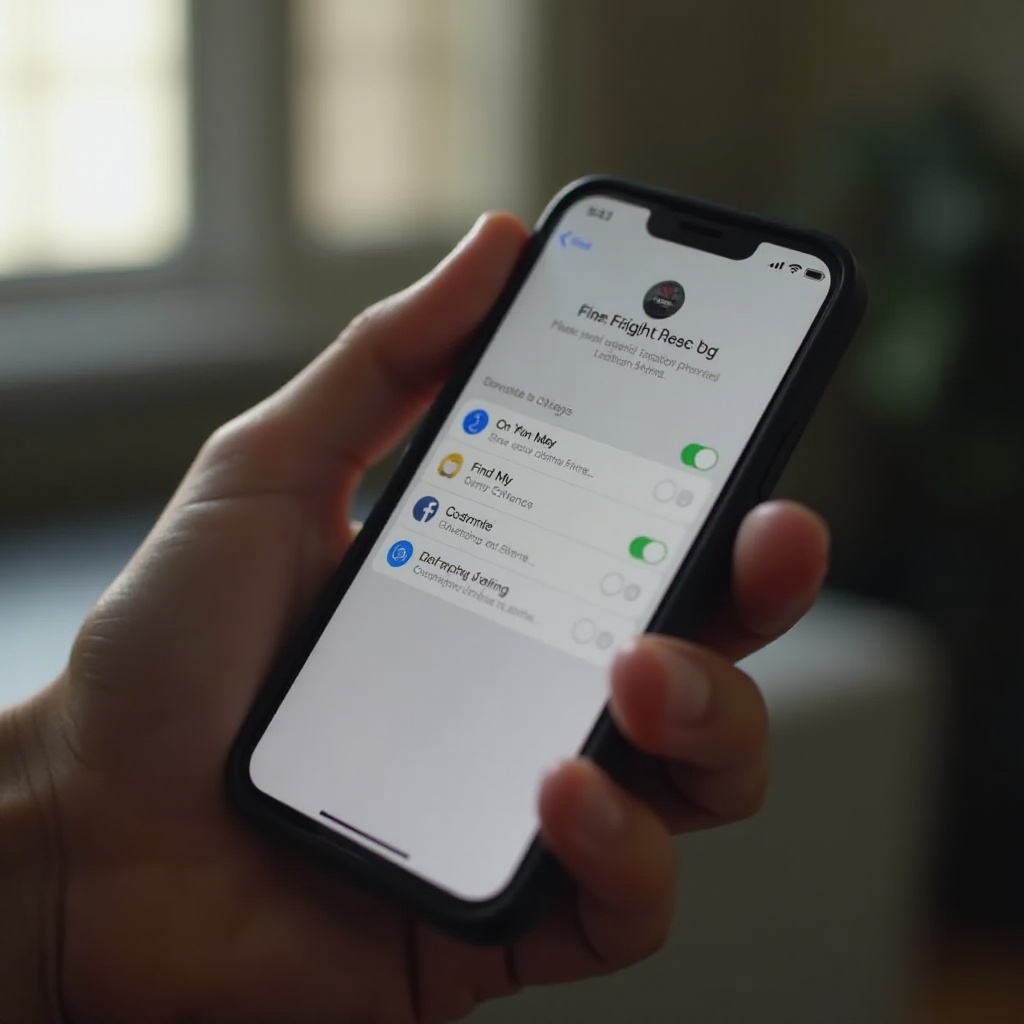
- Safety Check acts silently, which is ideal if you need immediate privacy without alerting anyone.
Conclusion
Apple makes location sharing visible when you look and quiet when you stop. Ending sharing in Find My or Messages does not generate a push alert to the other person. They will only notice if they open the app and check. Geofence alerts stop firing once sharing ends, and third party apps may behave differently. Control your privacy by reviewing who can see your location, using temporary durations, and leveraging Safety Check when needed. With these habits, you can coordinate safely, respect boundaries, and avoid misunderstandings about what others do or do not see when sharing ends.
Frequently Asked Questions
Can someone tell if I turned off Share My Location?
They do not receive a push alert. If they open Find My or your Messages thread, they may see that sharing ended or that your location is unavailable. The change appears only when they check.
Do geofence alerts tell them when I leave or arrive?
Only while active sharing is on. If they set a Notify Me alert, it can fire when you arrive or leave a place. If you stop sharing first, the alert will not fire. Apple does not send a separate stopped sharing push.
Does blocking someone stop location sharing?
Blocking in Messages does not automatically stop Find My sharing. You must stop sharing in Find My or turn off Share My Location. Safety Check can revoke access across people and apps in one pass.