Introduction
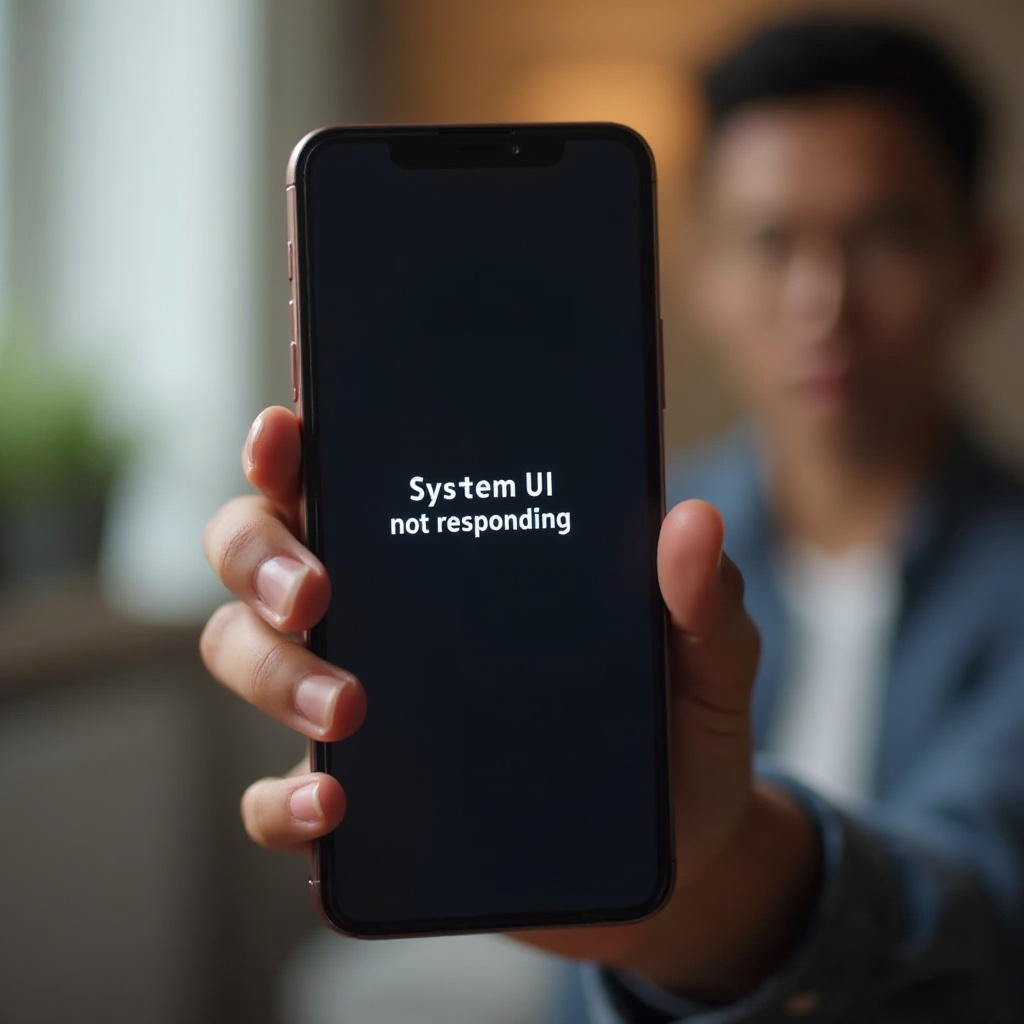
Experiencing a ‘System UI Not Responding’ error on your phone can be exasperating. This unexpected disruption often leaves users in a quandary, especially during critical moments such as important calls or while capturing special memories. To alleviate this frustration, it’s essential to understand why this error occurs and how to navigate its resolution. By grasping the intricacies behind the issue, you can restore your phone’s performance and reduce the anxiety of encountering unexpected errors.

Understanding System UI and Its Importance
The System UI, short for System User Interface, plays a pivotal role in your phone’s usability. It governs all visual interactions, from the notification bar and on-screen buttons to the layout of your display. By managing these elements efficiently, it aims to provide a seamless user experience. However, when the System UI malfunctions, your phone’s interface might become unresponsive or start displaying errors, interrupting routine actions. Thus, ensuring the System UI’s stability is critical for an enjoyable smartphone experience.
Common Causes of the System UI Not Responding Error
Awareness of the common triggers behind the System UI not responding error helps in troubleshooting. Several factors can lead to this issue:
Software Glitches
Bugs within the operating system may spawn software glitches, causing erratic phone behavior or slow responses that prompt the System UI error.
Resource Overload
Your phone juggles many processes simultaneously. Running too many apps simultaneously or processing extensive data can overwhelm your device, leading to System UI lag.
App Compatibility Issues
Incompatible or poorly coded apps can disrupt the System UI. When the operating system receives updates, some apps may become misaligned, causing performance interruptions. By recognizing these challenges, you can lay the groundwork for addressing sudden user interface interruptions effectively.

Basic Troubleshooting Steps
Before resorting to intricate solutions, some basic troubleshooting might restore your phone’s normal operation. Here are a few quick measures:
Restart Your Phone
A simple restart can clear background processes and refresh the system. This action often eliminates minor bugs that trigger System UI errors.
Clear Cache and Temporary Files
Cache buildup can hamper your device’s speed. Navigate to the settings, find ‘Storage,’ and clear cache data to boost performance and resolve System UI problems.
Update Apps
Outdated apps may conflict with recent operating system updates. Regularly update your apps to ensure compatibility and minimize disruptions in the UI.
If these basic strategies do not address the issue, exploring more advanced troubleshooting techniques could help uncover and mitigate the root causes.
Advanced Solutions for Resolving System UI Issues
For persistent errors disrupting your smartphone experience, consider the following advanced troubleshooting options:
Booting into Safe Mode
Safe mode can determine if third-party apps are at fault. To enter safe mode, press and hold the power button until the option appears. Safe mode disables third-party apps, helping identify problematic ones affecting the System UI.
Performing a Factory Reset
A factory reset will erase all data and apps, potentially resolving conflicts with the System UI. Ensure important data is backed up before proceeding. Afterward, your device should operate smoothly, free from intrusive software conflicts.
Contacting Customer Support
If the issue persists despite efforts, professional assistance might be necessary. Customer support can offer insights and solutions tailored to your device’s specific characteristics.
Applying these thorough strategies can often resolve unresolved System UI issues, ultimately enhancing your smartphone experience.
Tips to Prevent Future System UI Problems
Taking proactive steps can avert the recurrence of System UI issues. By maintaining regular device maintenance, you can ensure a responsive and enjoyable usage experience:
Regular Software Updates
Frequent updates keep your operating system optimized, addressing known bugs and synchronizing compatibility with apps.
Manage App Installations
Limit app installations to those essential for daily use. Too many apps clutter your phone and strain its resources.
Maintain Sufficient Storage
Regularly free up space by deleting unnecessary files and moving large items to external storage. Maintaining ample storage aids operational speed.
Embracing these practices can cultivate a healthier operating environment for your phone’s System UI.
Conclusion
The ‘System UI Not Responding’ error is disconcerting but manageable. From simple restarts to comprehensive troubleshooting, numerous methods exist to mitigate this issue effectively. Proactive measures support long-term stability, ensuring seamless phone operation and minimal interruptions. By adopting these strategies, you can safeguard your device’s performance and enjoy uninterrupted connectivity in your digital life.
Frequently Asked Questions
What is System UI on my phone?
System UI refers to the System User Interface, managing visual elements you interact with. It ensures smooth user engagement with your phone.
Can third-party apps cause the System UI to stop responding?
Yes, incompatible third-party apps can conflict with the System UI, causing errors. Identifying and managing these apps can resolve such issues.
How often should I clear my phone’s cache to prevent UI issues?
Clearing your phone’s cache monthly helps maintain efficient operations, prevents data buildup, and ensures optimal app performance with the UI.