Introduction
For many Windows 10 users, encountering the message ‘These files might be harmful to your computer’ is a somewhat common occurrence when downloading or accessing particular files. While seemingly alarming, this alert serves as a crucial defense mechanism aimed at safeguarding your system against potential threats that could inflict harm. Knowing why these warnings are raised and how to manage them properly is vital in maintaining a secure computing environment. This comprehensive guide delves into the triggers behind these warnings, evaluates the true risk posed by flagged files, and offers strategies for handling these situations responsibly and safely.
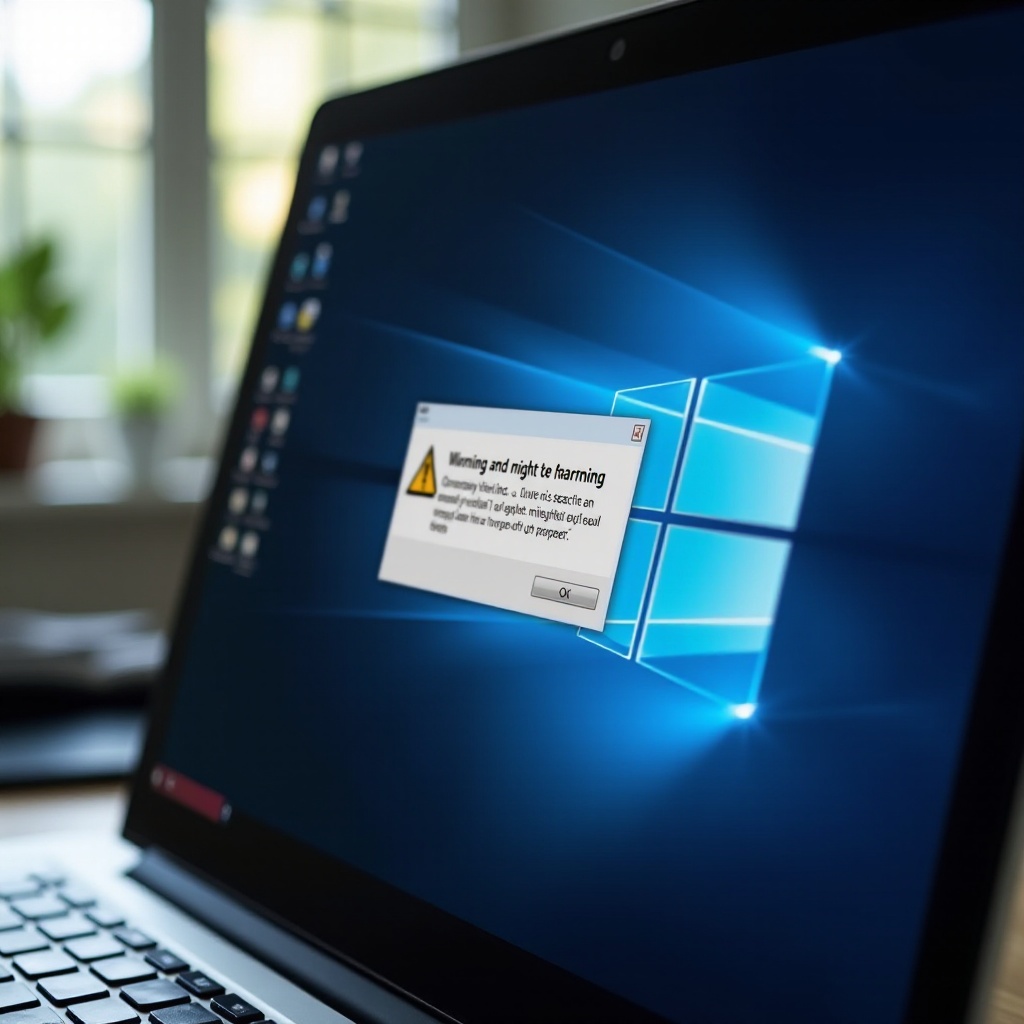
What Triggers the ‘These Files Might Be Harmful’ Warning?
Windows 10’s warning system is crafted to shield your computer from suspicious files that might contain malware or viruses. This message generally pops up when you attempt to download or open files from unverified sources, such as the internet, public networks, or unknown USB drives. Several pivotal factors contribute to this warning:
- Domain Reputation: Files originating from websites that lack proper trust signals or do not use secure certificates (HTTPS) are often flagged.
- File Type and Extension: Executable files (.exe, .bat) or those containing potentially unsafe macros frequently trigger warnings.
- Security Settings: The frequency of these alerts can be influenced by your security settings. Lowering security settings might diminish alerts but simultaneously elevates vulnerability.
These warnings prompt users to proceed cautiously to ensure that actions are taken deliberately and with awareness of the potential risks.

Assessing the Risk: Are These Files Really Harmful?
It is important to note that not every file flagged by Windows 10 poses a genuine threat. Oftentimes, the system errs on the side of caution, flagging files from lesser-known developers or domains without an established reputation. However, dismissing these warnings without due diligence can be dangerous, as cybercriminals continually devise new ways to encapsulate malware within seemingly innocuous files.
To gauge the actual risk, scrutinize the file’s source. Files from reputable companies or developers are generally safer, though it’s always wise to verify. Evaluate the context: if a file appears unexpectedly or unsolicited, approach it with elevated caution. Balancing vigilance with logic assists in distinguishing between routine alerts and legitimate threats.
How to Safely Manage and Verify Downloaded Files
Ensuring the safe handling of potentially harmful files involves several effective strategies:
Verifying File Sources
Always check the source of the file. Opt for official websites, secure connections, and trusted developers to increase your confidence in proceeding. Cross-reference user reviews or consult software databases to confirm authenticity.
Scanning with Antivirus Software
Prior to opening any flagged files, execute a scan using dependable antivirus software. Make sure that your virus definitions are current. Most antivirus tools will provide a comprehensive report on the file’s safety, alerting you to any detected threats.
Adjusting Windows Security Settings for Safe Access
Sometimes, legitimate files are erroneously flagged due to overly strict security settings. Here’s how you can adjust these settings responsibly:
Modifying Internet Options
- Open Control Panel and choose ‘Internet Options.
- Navigate to the ‘Security’ tab and modify the security level as necessary.
- For trusted internet zones, resources with a high level of trust can be assigned a lower security level, reducing interruptions.
Adding Trusted Sites
- Within the ‘Security’ tab, select ‘Trusted Sites.
- Click ‘Sites’ and add URLs you frequently download from and know to be secure.
- This minimizes the chances of unwarranted warnings from these specific sites.
Strategies for Safe Computing to Avoid Harmful Downloads
Implementing preventive measures is crucial in minimizing the risk of harmful downloads:
Best Practices for Browsing
- Utilize reputable web browsers equipped with built-in security features.
- Steer clear of downloading files from unfamiliar websites or links found in unsolicited emails.
- Employ browser extensions designed to enhance security and privacy.
Keeping Your System Updated
Ensure that Windows and all installed applications are consistently updated. Updates frequently contain vital security patches that guard against vulnerabilities exploited by malware.
Conclusion
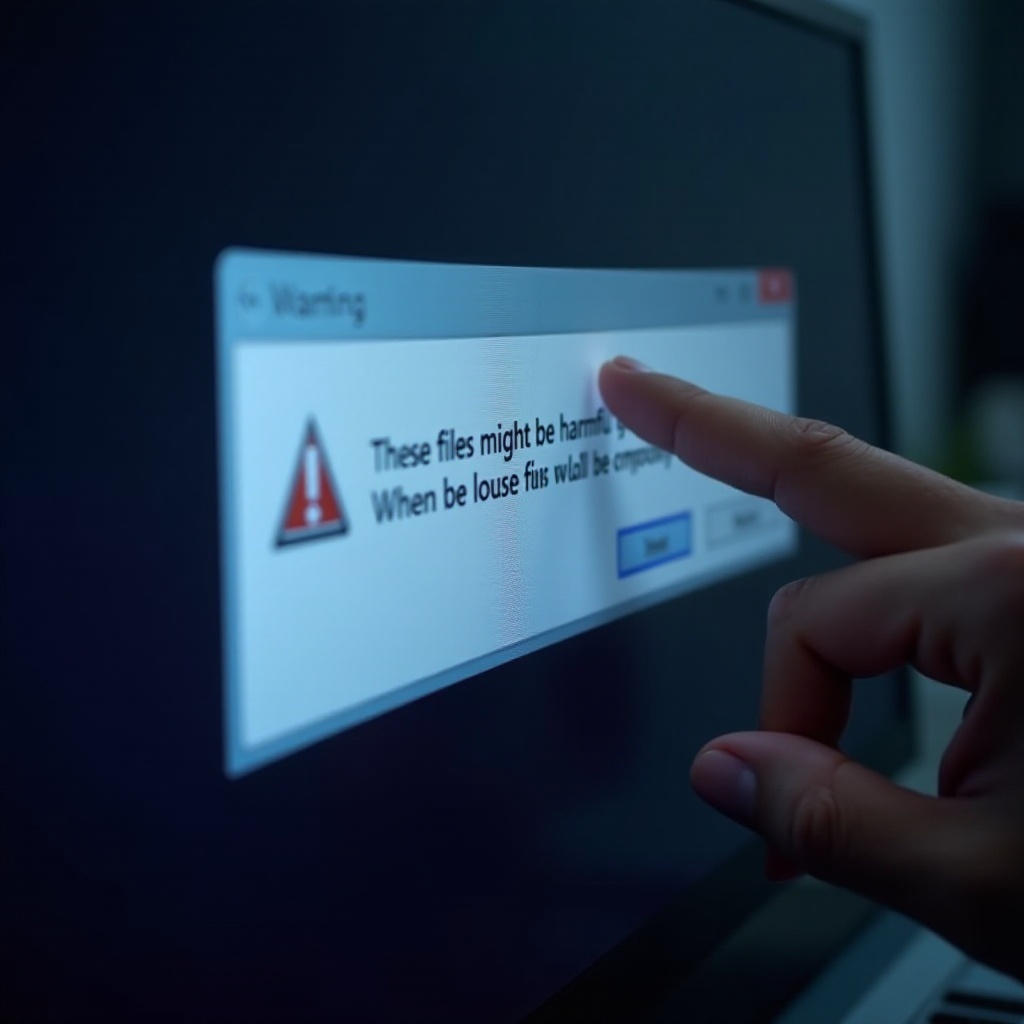
The ‘These files might be harmful’ warning forms a vital part of Windows 10’s security defenses. While these alerts can sometimes result from false positives, maintaining vigilance through file verification and routine system updates is imperative. By carefully managing how files are verified and secured, you can enhance your computing experience and bolster your system’s safety.
Frequently Asked Questions
Why does Windows flag certain files as harmful?
Windows flags files based on their origin, file type, and the system’s security settings. Unverified sources or potentially unsafe file types can trigger these warnings to prevent harm.
How can I disable the warning for specific downloads?
You can adjust the security settings in ‘Internet Options’ and add frequently accessed, trustworthy sites to your ‘Trusted Sites’ list to reduce unnecessary warnings.
What should I do if I accidentally downloaded a harmful file?
Immediately disconnect from the internet and run a full system scan with updated antivirus software. If malware is detected, follow your antivirus software’s instructions to remove it, and consider restoring your system to a previous safe state.